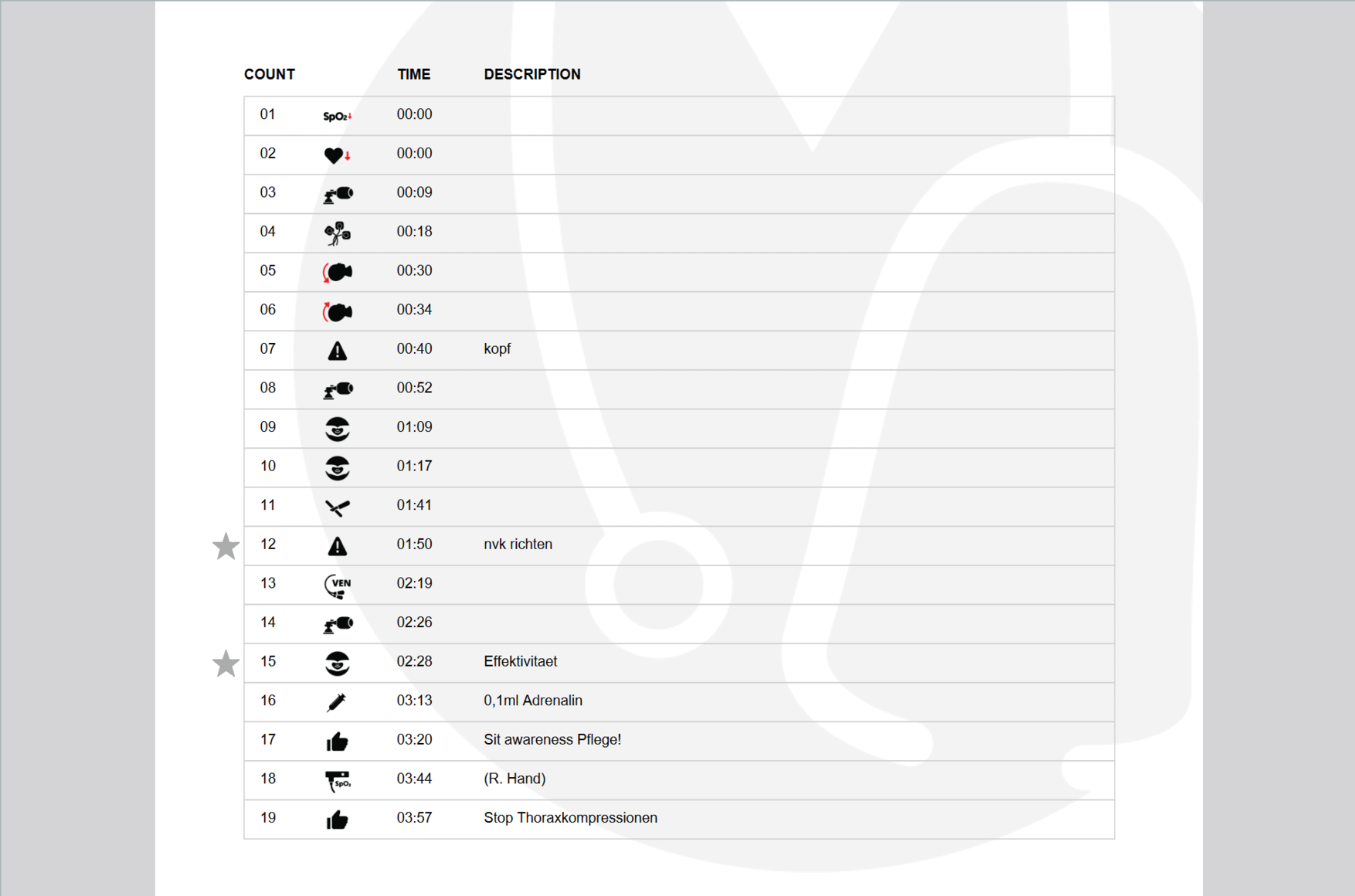
Debriefing system
A debriefing system is already integrated into Paul‘s user interface.
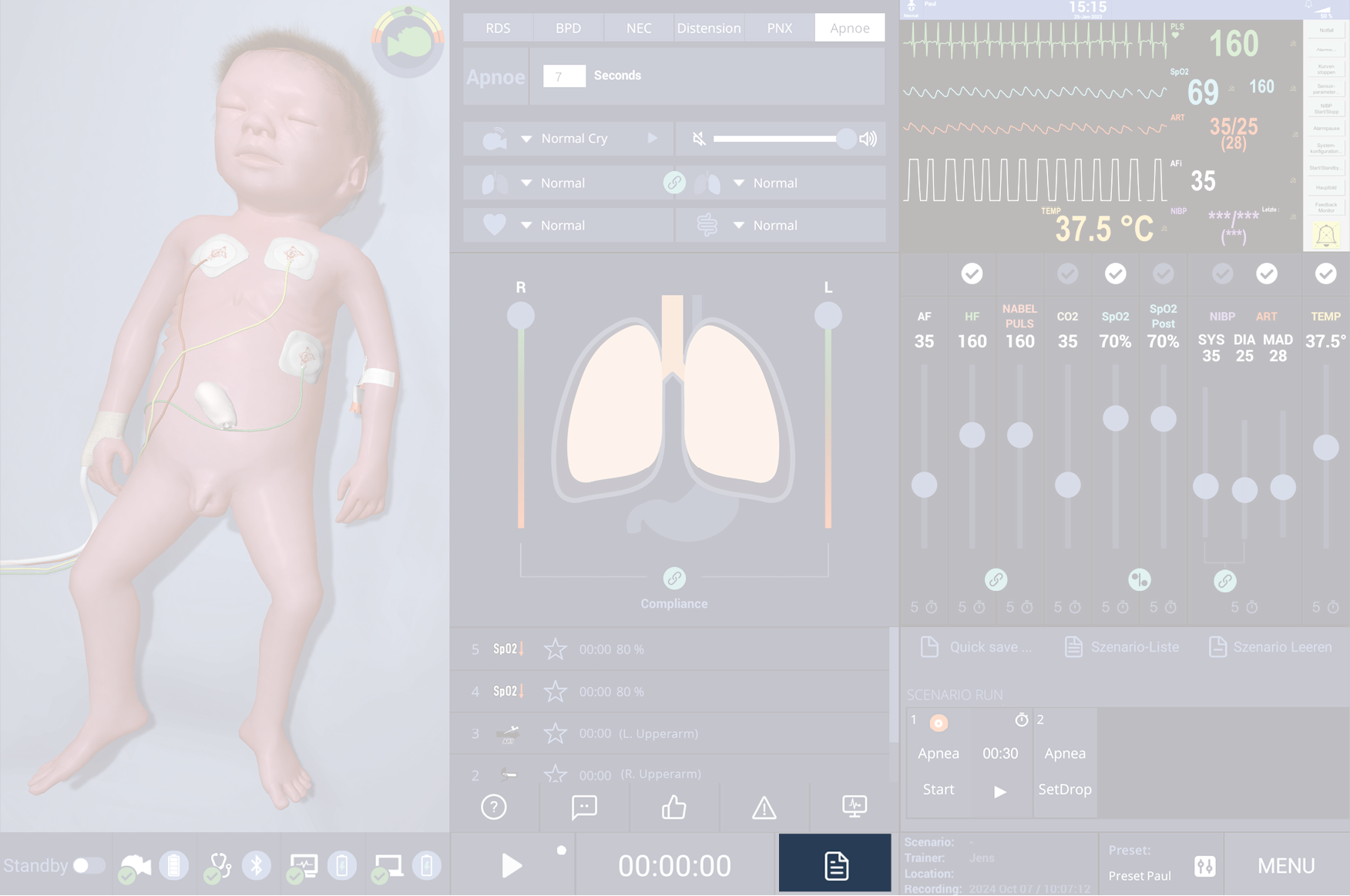
It is controlled in the lower center area of the user interface.
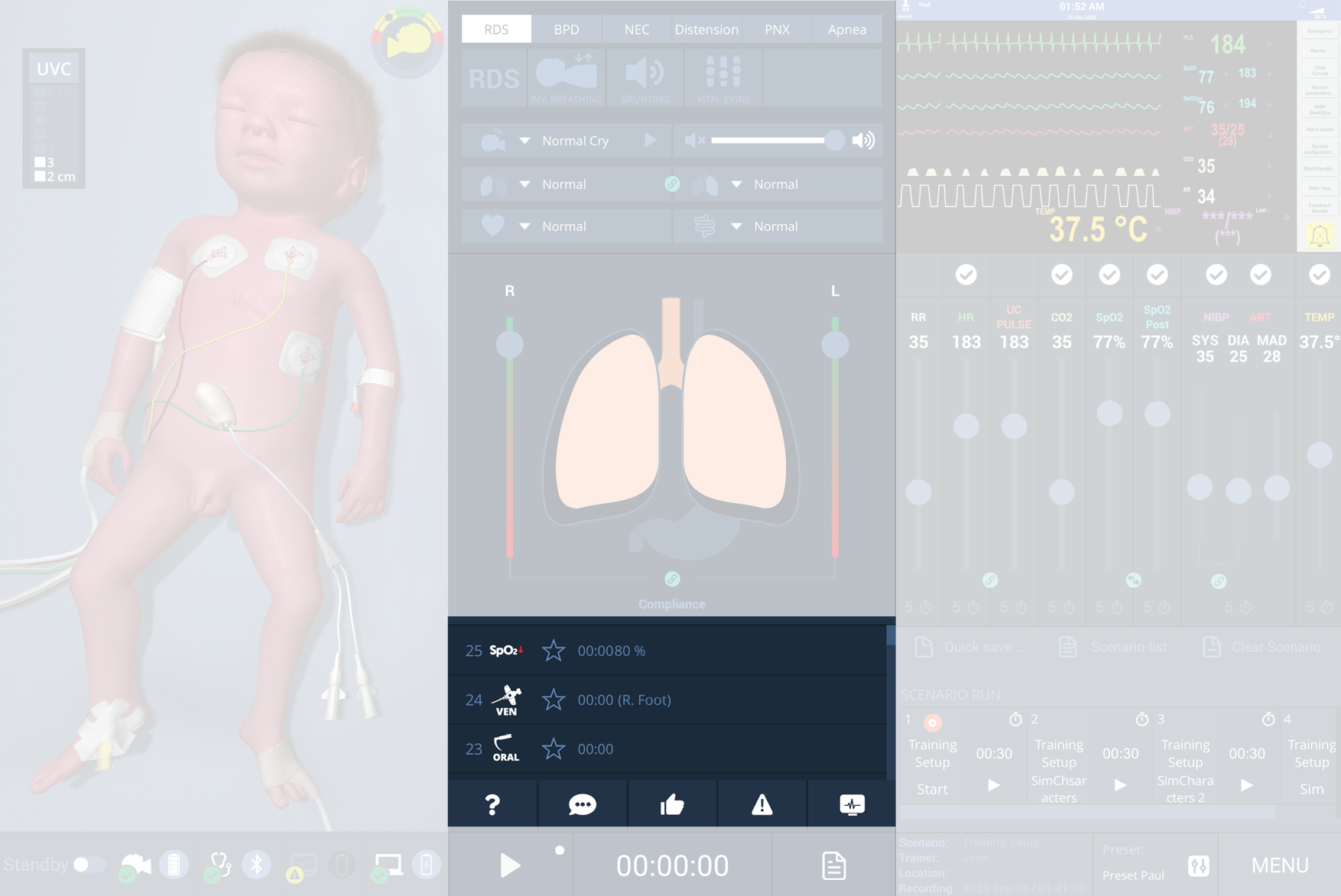
Starting a training scenario
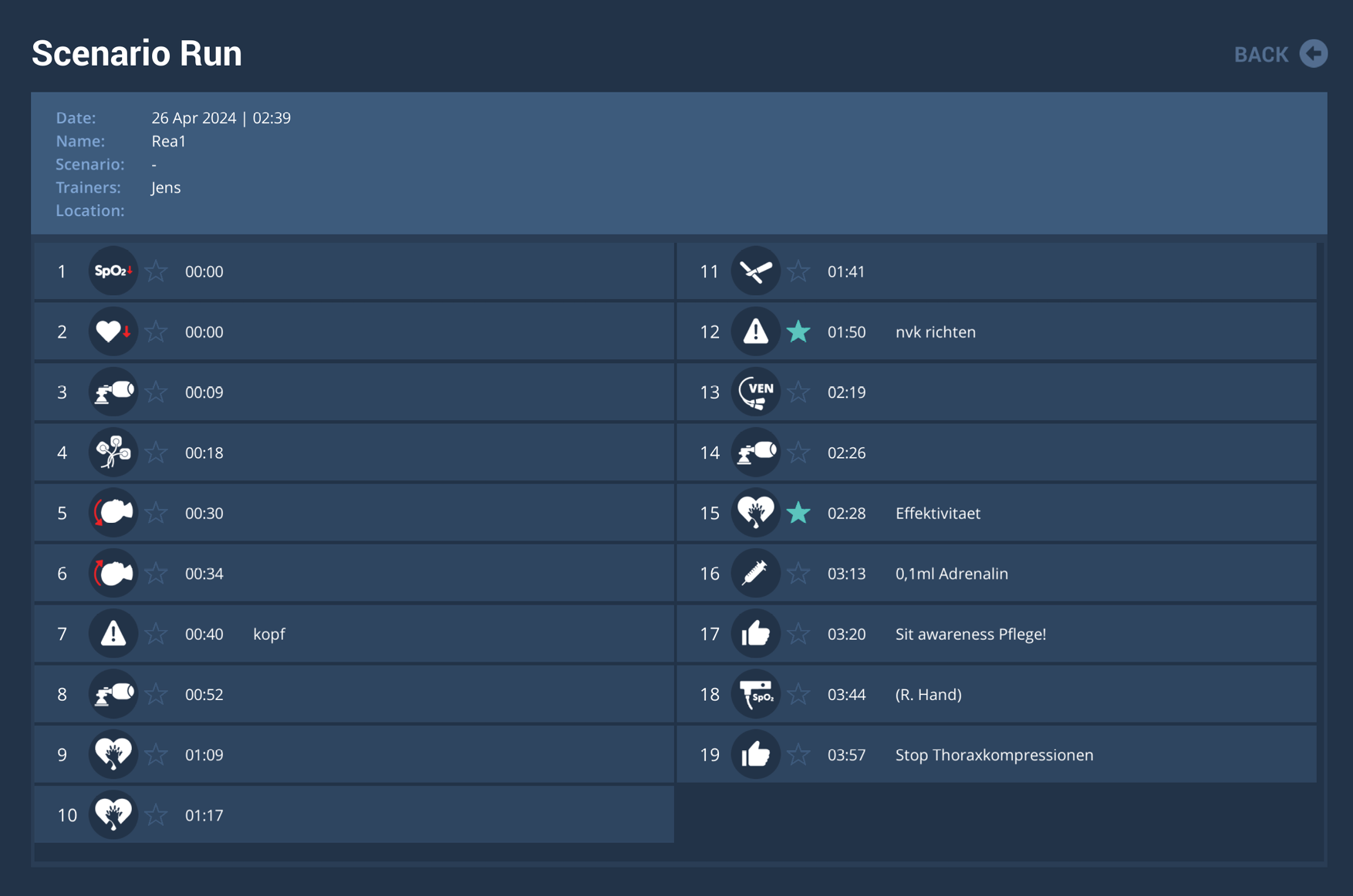
When a scenario is started with Play in the Debriefing system, a timer begins automatically. All sensor events from Paul (e.g., ventilation, intubation, UVC placement) and trainer-triggered events (e.g., ECG, SpO₂, access) receive a time stamp and are logged to the debriefing timeline.
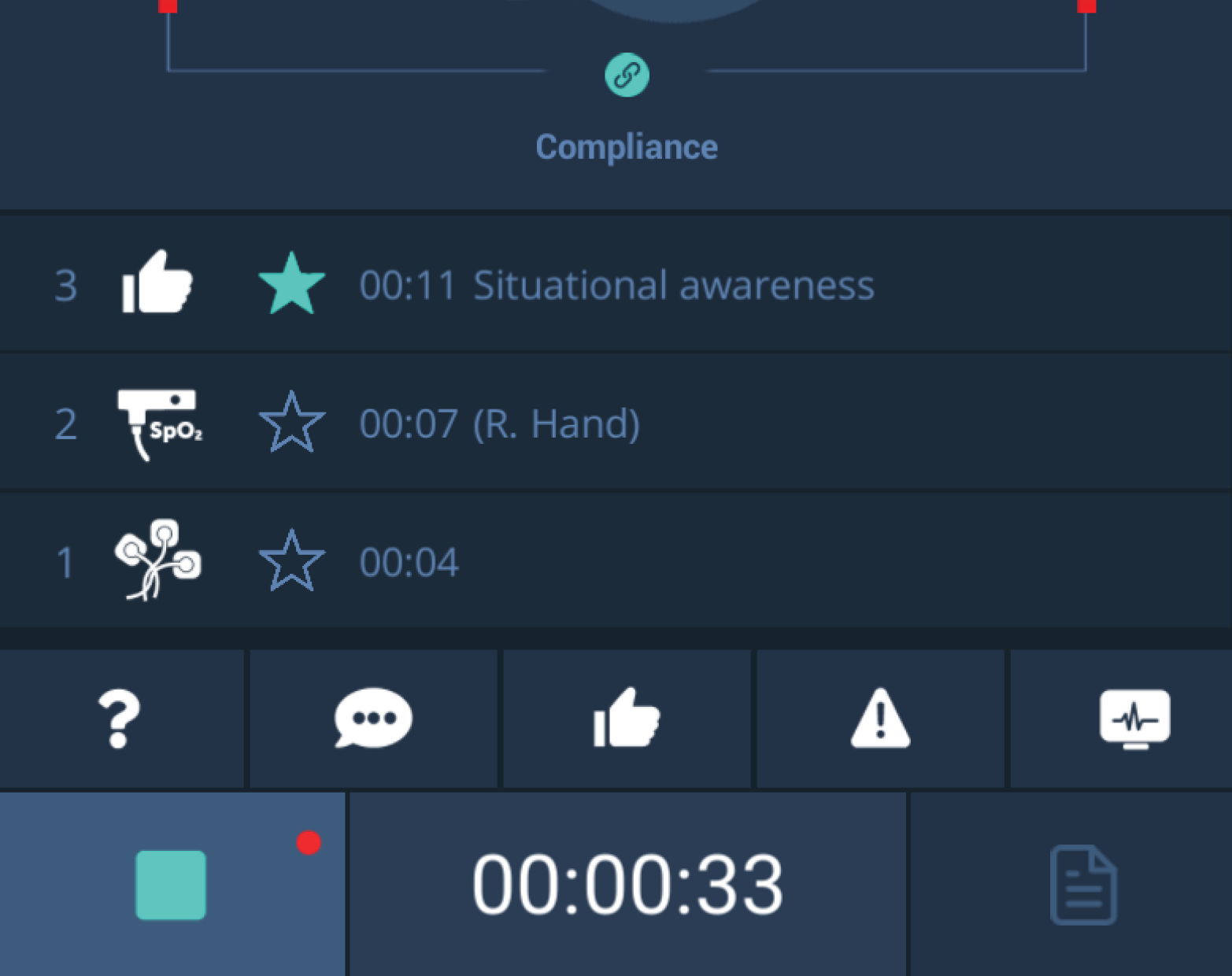
The Debriefing panel on Paul’s user interface always shows the last three events. Each event can be commented via the pencil icon. Markers can be added (e.g., for non-technical skills such as communication and teamwork) and commented as needed.
The monitor icon captures a screenshot of the current vital signs for inclusion in the debriefing record.
TIP
The small asterisk between the event icon and the timestamp allows you to mark an event that you consider particularly important for the debriefing during the training scenario.
Ending a training scenario
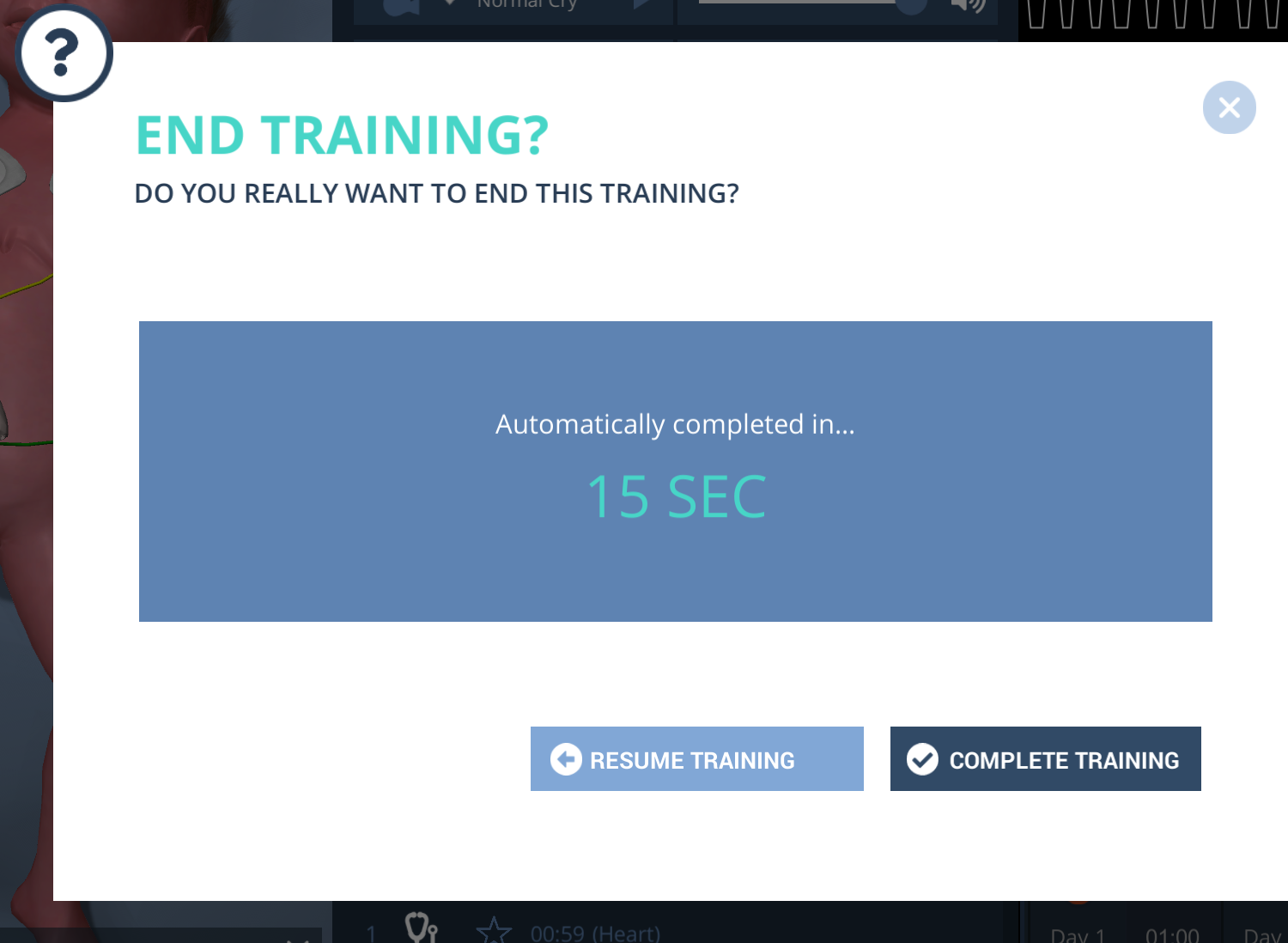
Click the stop button to end recording.
A confirmation prompt appears.
To confirm your choice, select Complete Training.
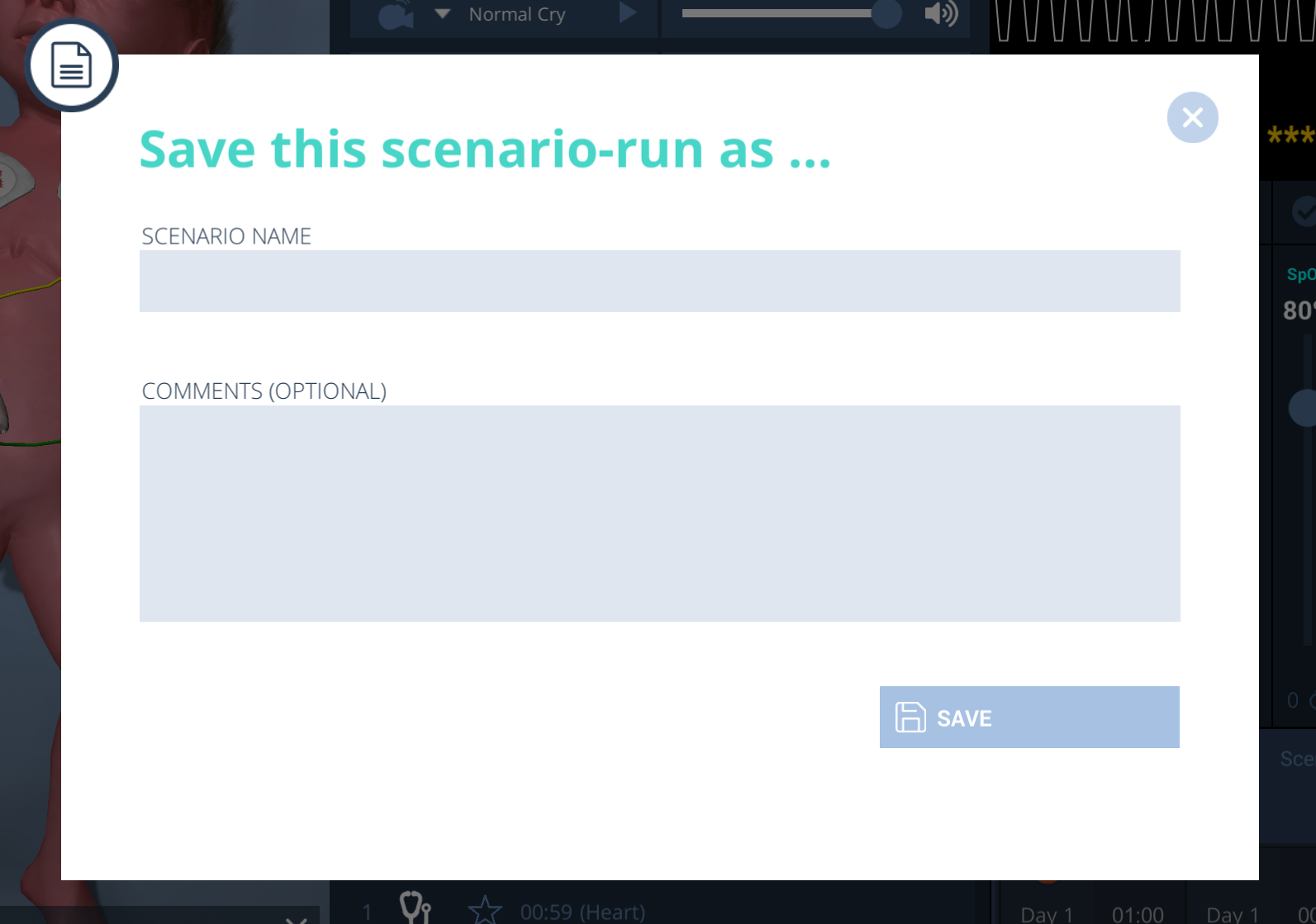
A new window opens to save the current scenario.
Enter a name, add comments, then click Save.
A reminder appears to connect Paul to the charging cable.
The simulator, Trainer laptop and patient monitor switches to Standby mode automatically.
NOTE
After each scenario, reconnect Paul to its charging cable during the debrief to ensure battery operation for the next training session. To remind you of this, the message "Please connect Paul to the charging cable."appears on the user interface at the end of each scenario.
Opening the debriefing view
Click the Debriefing icon to open Debriefing mode.
Select the desired scenario from the list to view all markers and auto-captured events.
TIP
All recorded scenarios are automatically saved on the desktop in the Debriefings folder as Word, Excel and PDF documents saved.