Setup 3/4: Powering on the simulator
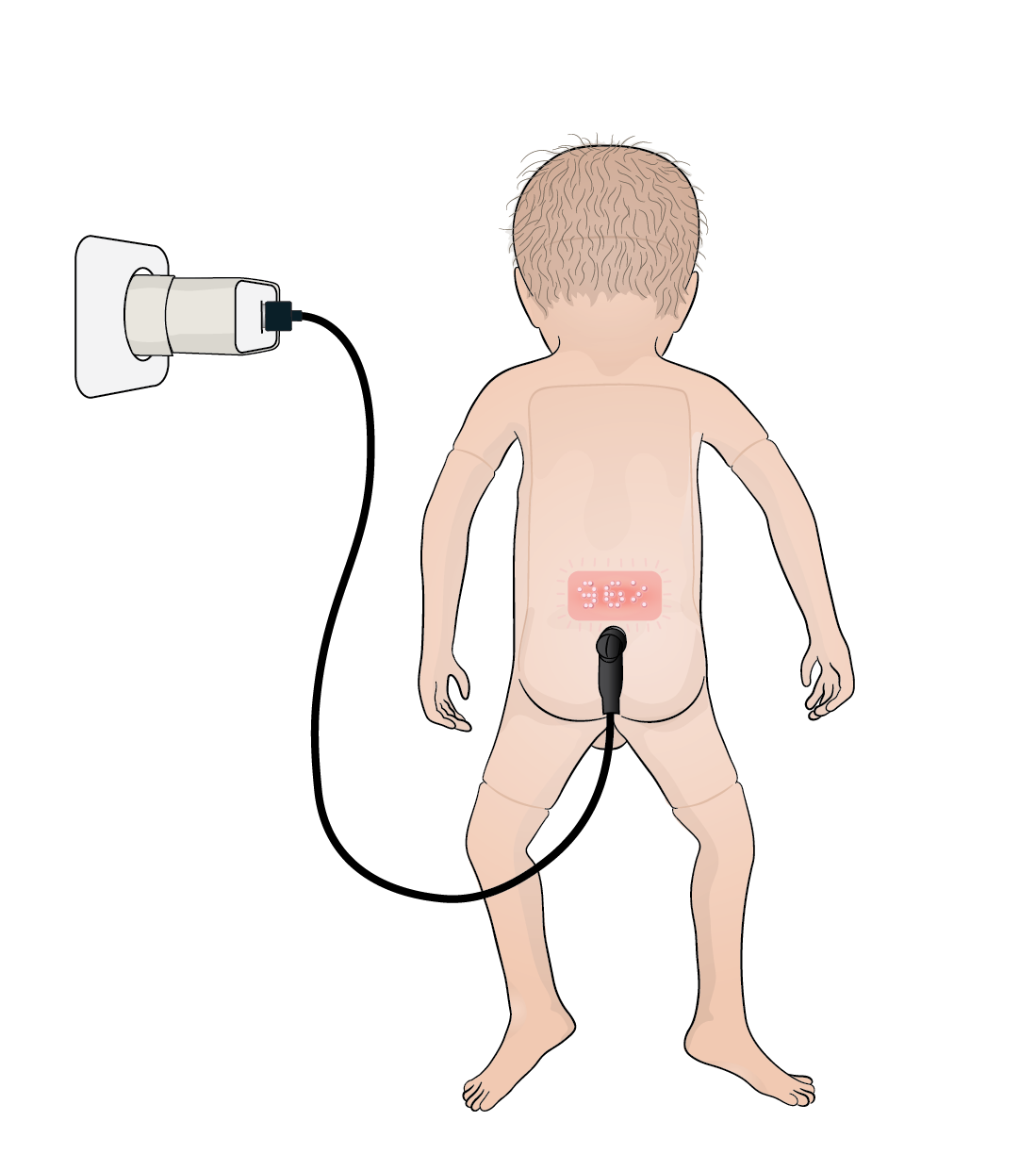
Paul does not have a power button. To power it on, connect the simulator to its power supply using the provided simulator cable.
The status LED on the simulator belly flashes blue while powering on.
CAUTIONS
Do not manipulate the simulator during start up, as the motors and sensors are calibrating during this phase.
Do not change the lighting conditions during start up, as some sensors on the simulator are light-sensitive.
When the simulator connects to the Graphical User Interface, the status LED turns off. The simulator starts breathing. A green checkmark appears next to the simulator icon in the status bar when the simulator is connected.
The battery status is shown in the same area. During charging, a charging animation is displayed on the battery icon.
TIP
Paul charges fastest when it is connected with the cable and is in standby mode.
Status LEDs
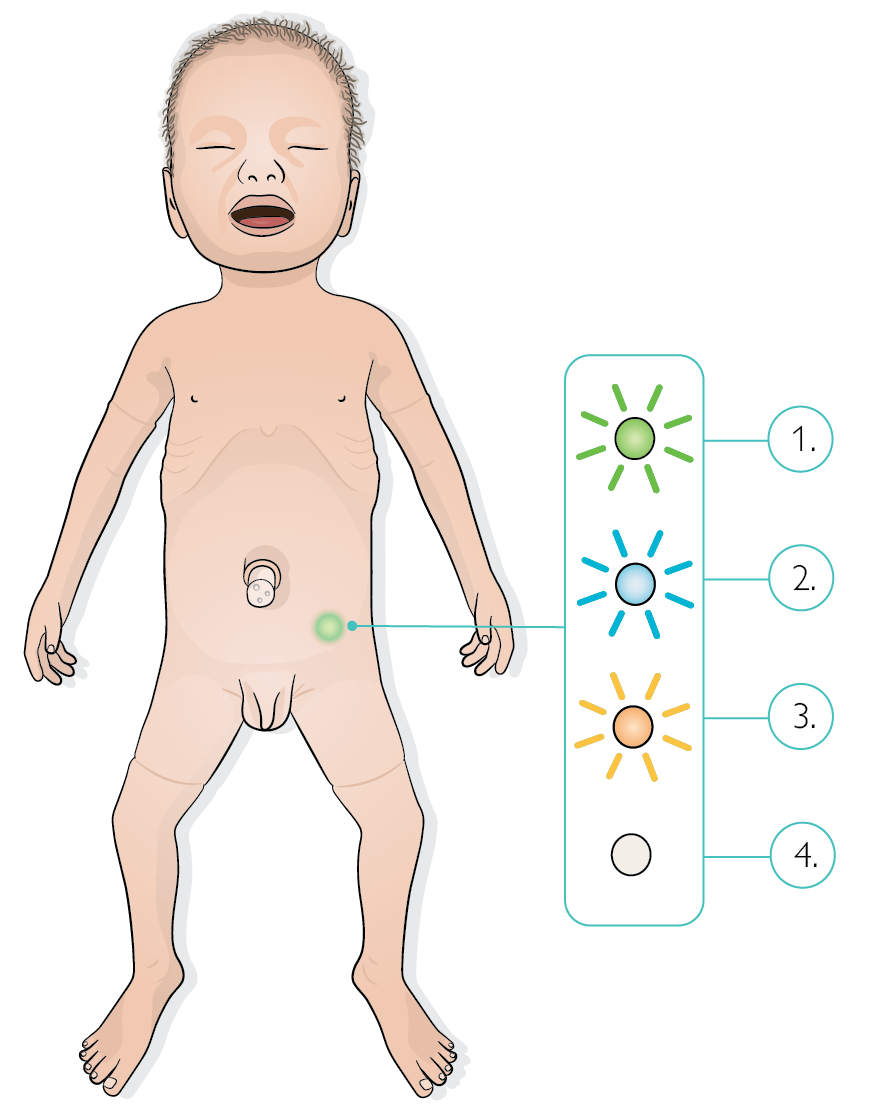 |
Flashing green: Standby mode
Flashing blue: Switched on, searching for network
Flashing yellow: Turned off but connected to charger
LED off, simulator not moving and not connected to GUI: simulator is OFF
LED off and simulator breathing: simulator is ON
A blue light flashes under the simulator's skin, on the left side of the stomach.
When Paul is connected to the control software, the light stops flashing and Paul starts breathing.
A green tick appears above the Paul icon in the system status bar on the user interface.