Setup 2/4: Logging into the Graphical User Interface (GUI)
On the Trainer laptop, start the control software.
If you are already registered as a user, log in with your name and personal password in the login window.
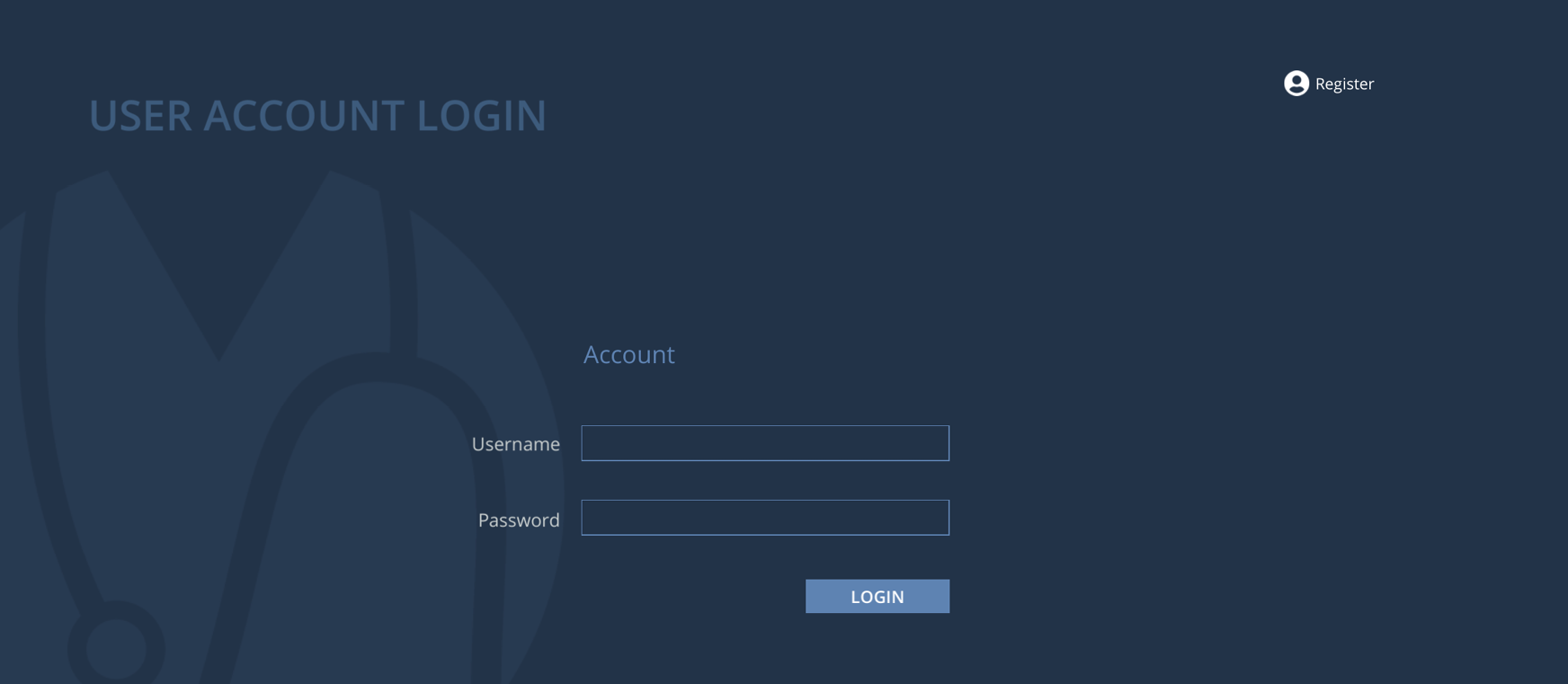
For a first time user, click Register and fill in the required information.
Click Register to validate.
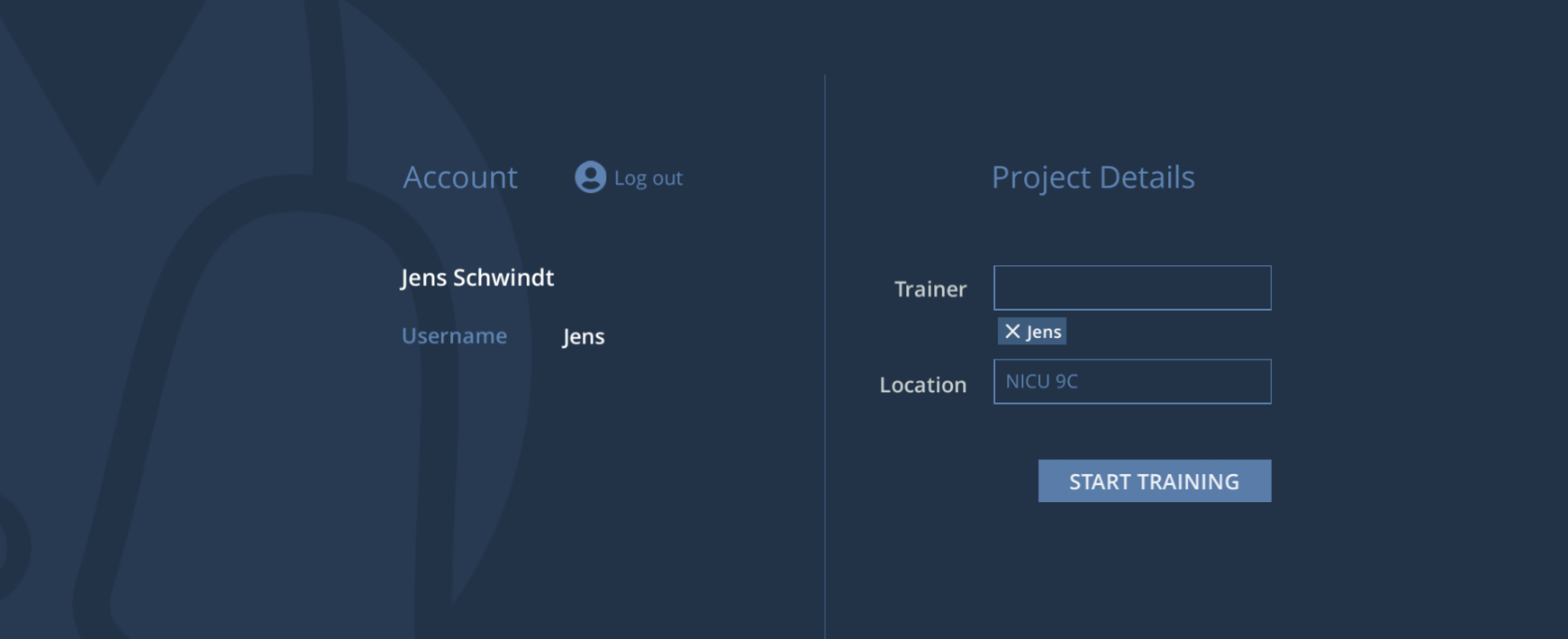
Users are now logged into the system and can add other registered users to a training or enter a training location on the project details page. Users can save basic settings and scenarios and use their own scenarios and scenarios that other users want to share with them for their training.
Fill in the project details and click Start Training.
For a first time use, tick all the safety instructions and select Start Training.
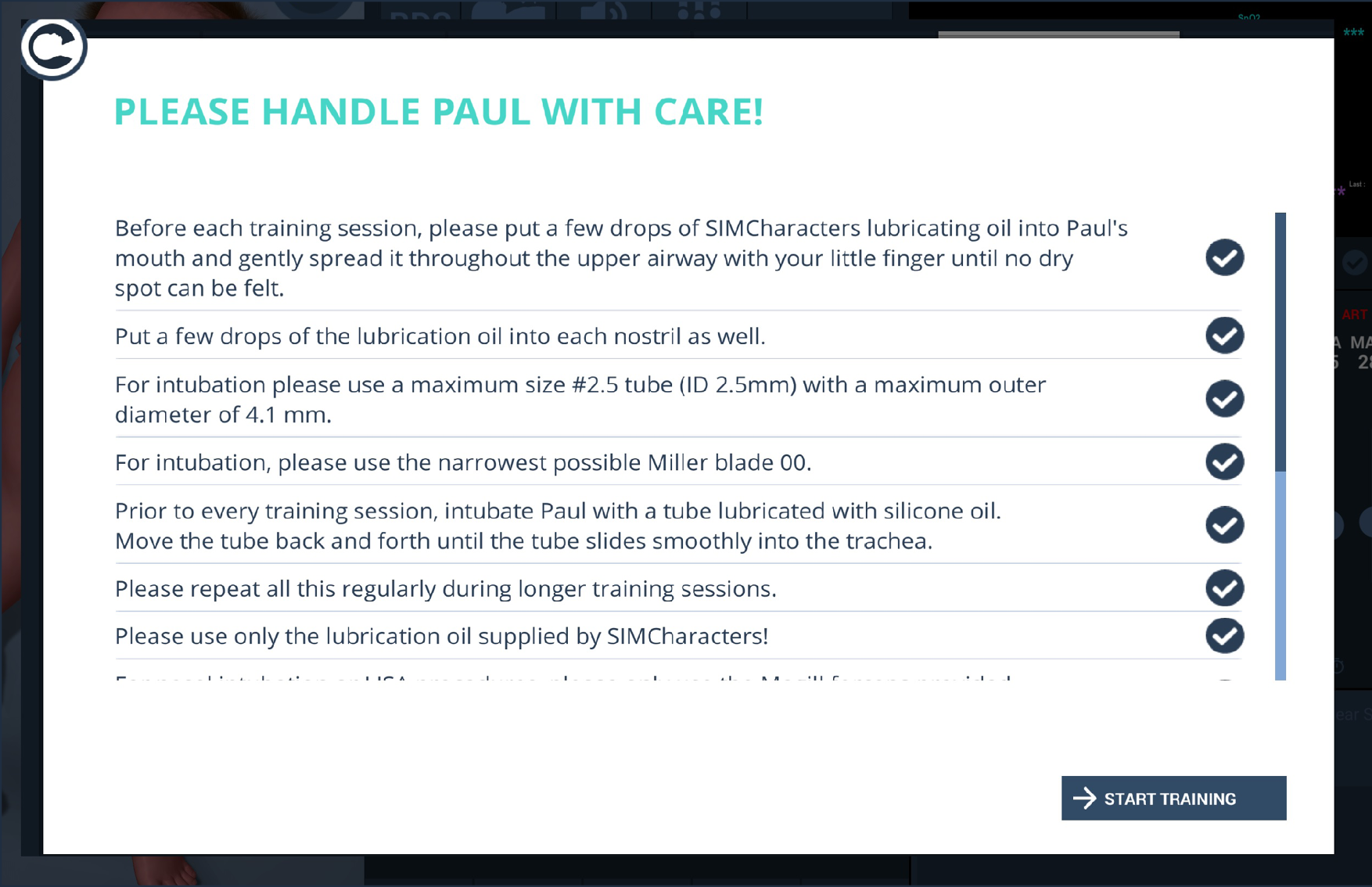
These safety instructions can be accessed at any time via the system settings.