The Graphical User Interface (GUI)
All of Emma/Emily‘s functions and the patient monitor are controlled via the GUI (Graphical User Interface).
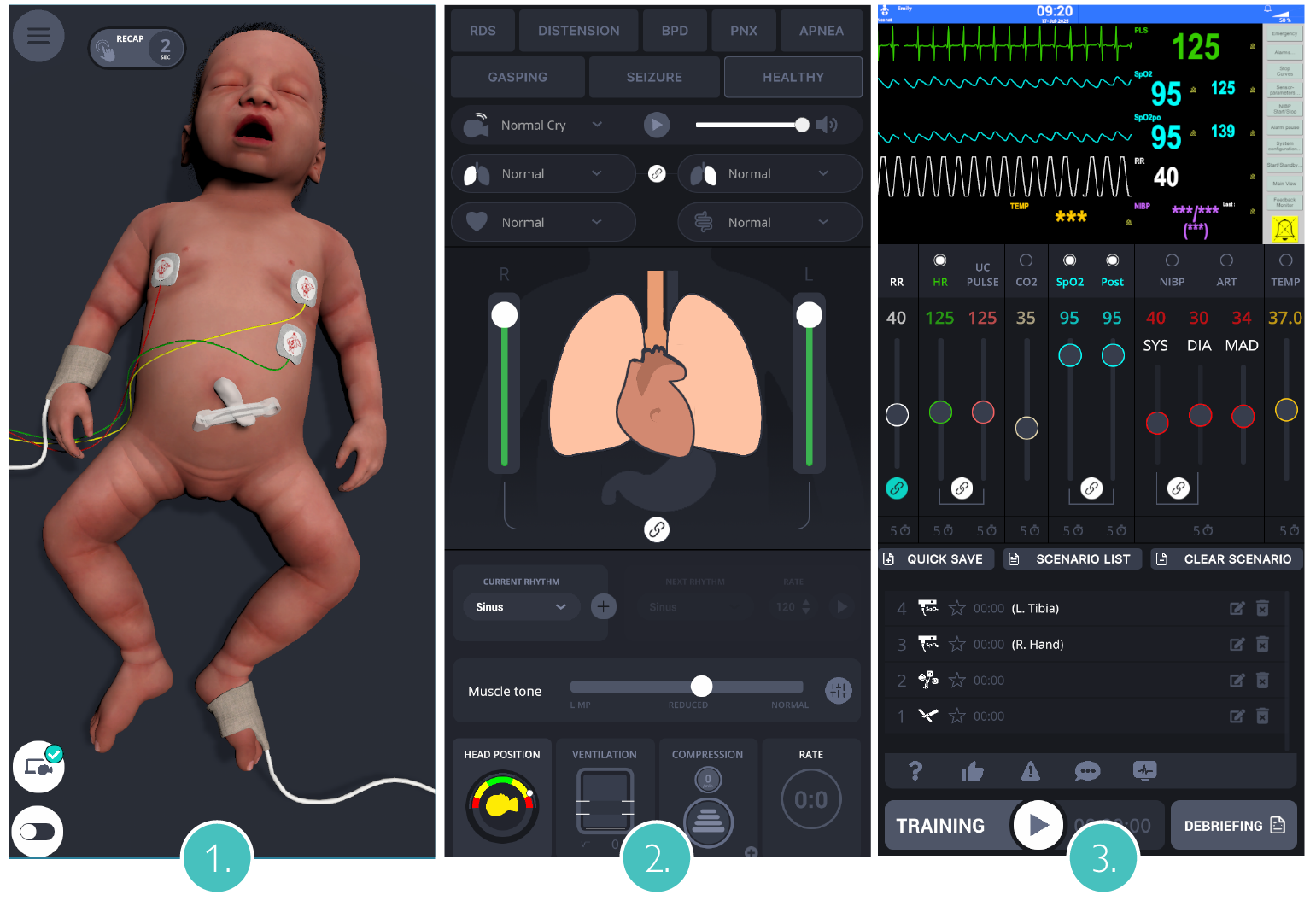
The GUI is divided into three areas:
The 3D model of Emma/Emily that depicts all functional states of the simulator in real time.
Retrieval of pre-programmed symptom complexes; playback of patient sounds and playback of sounds into the simulation stethoscope; control of lung function; control of heart rhythms; adjustment of muscle tone and body movements; and display for head position, ventilation parameters, effectiveness of chest compressions, and ventilation-to-compression ratio.
Control of the simulated patient monitor; starting and saving scenarios; control of the debriefing system.
Emma/Emily control areas in the 3D simulation
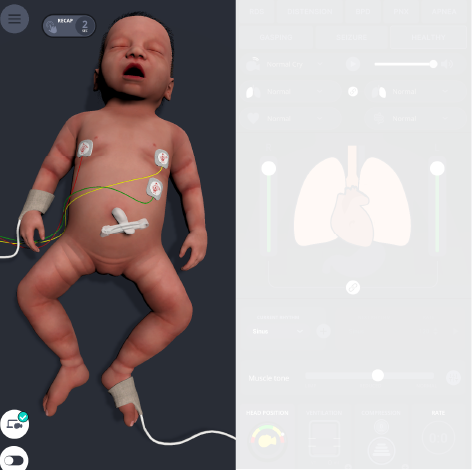
In this area, Emma/Emily is displayed in a real-time 3D simulation. Features displayed include Emma/Emily‘s breathing movements at the set breathing rate.
The sensors system recognizes actions performed on the simulator: mask ventilation, intubation or the insertion and advancement of an umbilical venous catheter. These are then displayed on the 3D animation.
NOTE
By moving the cursor all the way to the left edge, the sidebar for settings and system status will open.
Some actions cannot be detected by the sensors, like attaching an ECG or inserting a peripheral access. These can be set by the Instructor using the input bubbles and will show on the 3D animation.
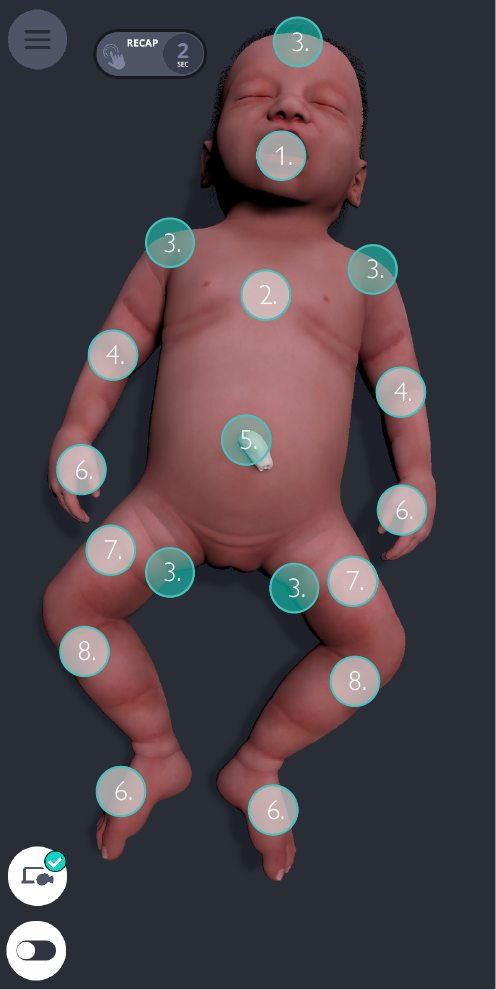 |
1 |  |  |  |  |  |
Repositioning of the oral tube | laryngeal mask | Repositioning of the nasal tube | endotracheal administration of medication | Oropharyngeal airway |
2 |  |  |  |  |
ECG | Capillary refill time | Chest Drains (r/l) | Subclavian Central Venous Catheter (SCV) |
3 |  |
Switching pulses on and off |
4 |  |  |  | |
Blood pressure cuff | Peripheral vascular access | Arterial line | Medication |
5 |  |  | | |
Umbilical venous catheter | Umbilical arterial catheter | Medication | Switching pulses on and off |
6 |  | | | |
Pulse Oximetry Sensor | Peripheral vascular access | Arterial line | Medication |
7 |  | |
Intraosseous access distal femur | Medication |
8 | | | |
Intraosseous access proximal tibia | Medication | Blood pressure cuff |
Symptom complexes, lung function, sounds and debriefing control area
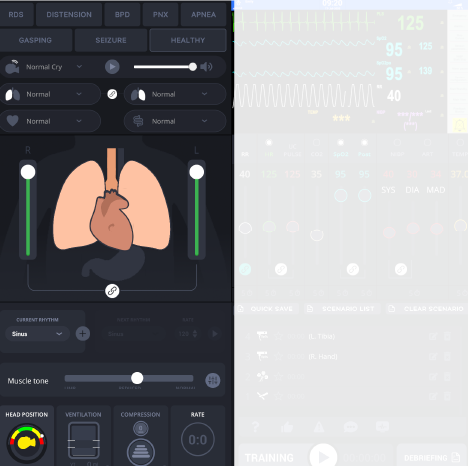
In this area of the user interface, uses can:
Select the predefined symptom complexes RDS, BPD, bowel distension, pneumothorax, apnea, gasping, and seizures.
Restore the simulator to default settings with a single click using the Healthy Baby button.
Change the lungs compliance.
Simulate a pneumothorax.
Set the sounds for the heart, lungs and bowel that are emitted via the stethoscope.
Select the patient sounds.
Start a training scenario and making time-stamped entries in the debriefing system.
Set heart rhythms and control the defibrillation feature via the ShockLink®.
Choose different vocal sounds.
Modify muscle tone and enable or disable spontaneous body movements.
View real-time sensor data for head position, ventilation parameters, chest compression quality, and the ventilation-to-compression ratio.
Patient monitor area
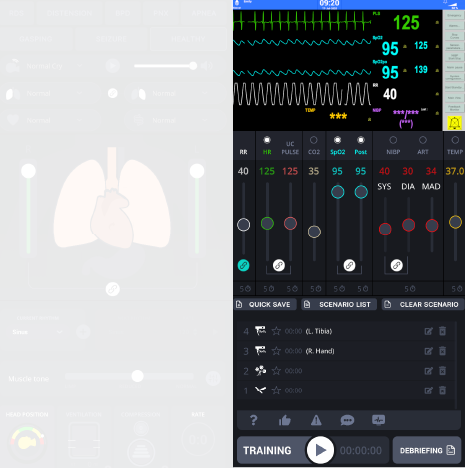
In this area of the user interface is displayed:
The simulated patient monitor as seen by the training participants in the training room is displayed.
Where the simulated patient monitor is controlled and managed (adjustment of the patient monitor parameters).
Where users can access the settings menu, save scenario configurations and load saved scenarios.
Where users can run and document scenarios, start training sessions, and make time-stamped entries for later review in the debriefing system.